Capture Screen
Introduction
Time Tracker tracks the duration of the currently focused window title and application path. Every time you focus on a new window, Time Tracker takes a screenshot and captures the new window title and application path.
After using the tool for a few hours, it's easy to find out what you've been doing all day.

To track time, hover over the Start area until you find the time you want to track and click the item you want to track. Next, hover over the time in the End capture area and click the end of the activity for which you want to capture time.

Tip
Use the screenshots to see what you have done.
Now that you have selected the start and end time for the activity, either click the Allocate Time button or select any area in the Capture line.

Fill in what you did during this period. In my case, I worked on the documentation for this tool.
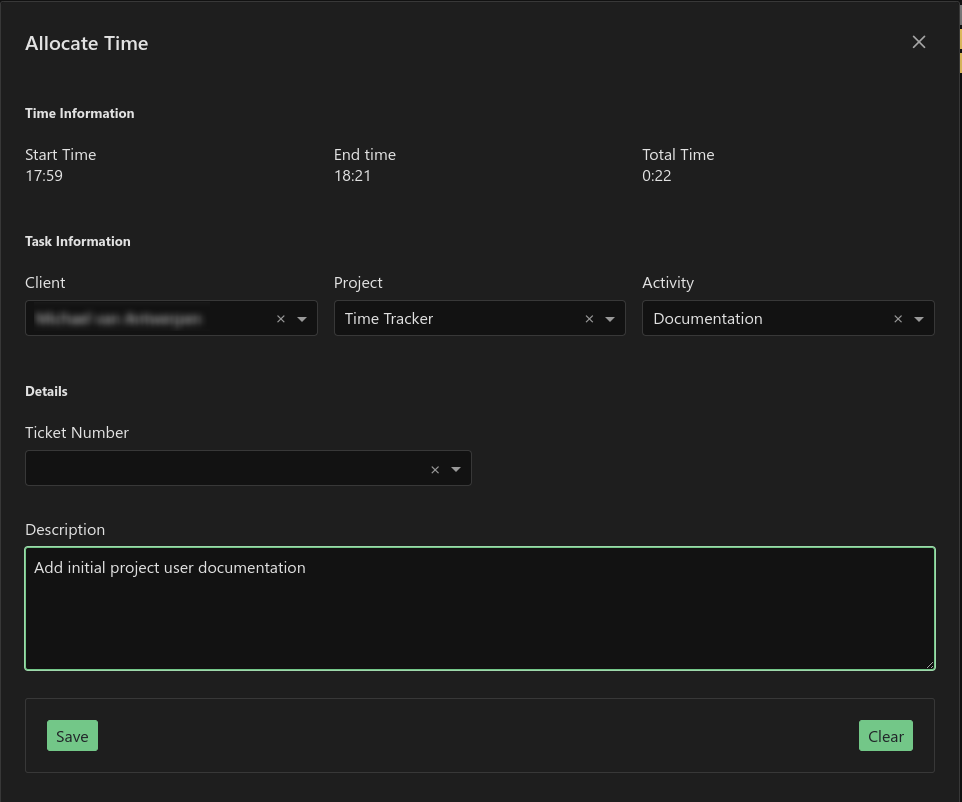
When you are finished, click the Save button.
Now that you have allocated your time, it will appear in blue on the capture line.

Tip
You can record additional time to any time you have previously recorded by simply selecting a new Start and End time and then selecting the blue capture line. of an existing client/project/activity.
Tip
You can search for any part of the application path, window title, client name, project name or activity name using the global search box in the top right-hand corner.
When you are done for the day you can easily see what activities you have spent your day on by simply clicking on the Summary button.
You can adjust the application settings by selecting the Administration >> Global Settings button.
Sometimes you may have some items you want to captur, such as a password spreadsheet, or a sensitive email. To exclude screenshots for specific applications or windows simply add an exclusion by clicking on the Administration >> Exclusions button.
Do you have daily repetitive tasks such as answering emails, checking on ticket statuses etc? To simplify this process you can set up automatic tagging by using the Administration >> Auto Capture button.