Welcome
A guide on how to save time in capturing timesheets with the assistance of Time Tracker
Introduction
Consider these questions:
- Did I start my day at 7:30 AM or 7:45 AM?
- Did I spend 15 minutes or 45 minutes looking at a support ticket?
- How long was I out for my lunch break?
- Am I working too many hours or too few hours?
- When I forget to complete my timesheet every day, how do I figure out what I did?
If you answered yes to any of the above questions, and you work on a computer most of the day, then Time Tracker is the answer all of the above questions.
Installing Time Tracker
There currently isn't an installer for the tool. Take the TimeTracker.Windows.1.4.2.zip and extract it anywhere on your computer.
Start the application by running the TimeTrackerService.bat file.

Warning
You cannot run this application without extracting it from the .zip file
By default, the application isn't set to auto start. You can turn on this functionality in Global Settings (the Auto Start Application option) to add Time Tracker to your startup applications.
When the application is running you'll see it's icon in the system tray
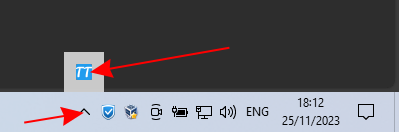
To use the application either:
- Left-click on the tray icon
- Right-click on the tray icon and select Capture Time
- Open your browser and navigate to http://localhost:8093
To get started with using the tool have a look at the Capture Screen